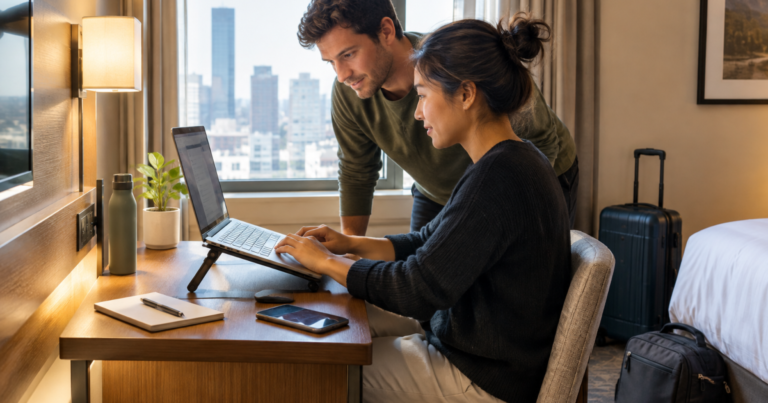
A hotel desk can be too low, too shallow, badly lit, or paired with a chair that was chosen for looks rather than work. You can still turn it into an ergonomic hotel room workspace in a few minutes if you fix the sequence: screen height first, input position second, chair support third, lighting and power last.
The goal is not to recreate your home office. It is to make the temporary setup good enough for calls, typing, reading, and focused work without turning arrival night into a furniture project.
The 7-minute desk reset
Use this order when you walk into the room. It keeps you from over-adjusting one part of the setup before you understand the rest of the space.
Related reading · Core Home Fitness MB 1000 All-In-One Home Gym Review: compact resistance training with real room to progress
- Minute 1: choose the work surface. Start with the desk if it has enough depth for your laptop, keyboard, mouse, and a drink without crowding. If the desk is tiny, consider the dining table, console, or a clear section of countertop for short sessions.
- Minute 2: move the screen higher. Raise the laptop until the top third of the screen is near eye level. A folded towel, firm book, packing cube, or compact laptop stand can work. Keep the base stable and avoid soft, wobbly stacks.
- Minute 3: separate typing from viewing. Once the laptop is raised, use a separate keyboard and mouse or trackpad. Typing on an elevated laptop usually forces your shoulders and wrists into a poor position.
- Minute 4: fix the chair gap. Add a pillow, rolled towel, or folded sweatshirt behind your lower back. If the seat is too deep, move the support forward so your back can rest without slouching.
- Minute 5: set arm position. Bring the keyboard close enough that your elbows stay near your sides. Your forearms should feel relaxed rather than reaching across the desk.
- Minute 6: control light and glare. Put the brightest light beside or behind the screen, not directly behind you or aimed at the display. Close sheers or angle the screen if the window creates glare.
- Minute 7: map power and cables. Plug in before your battery becomes the problem. Route cables along the back or side of the desk so they do not tug on ports or cross your mouse area.
This is the core travel-work habit: make the room serve the work, not the other way around. For a broader way to think about temporary setups, the mobile-office mindset is built around adapting calmly when the room is not designed for you.
Step 1: get the screen out of laptop hunch mode
Screen height is the quickest visible win. If the display is low, your head drops, your shoulders round, and every other adjustment has to compensate. Raise the laptop or monitor until you can look forward with your neck neutral most of the time.
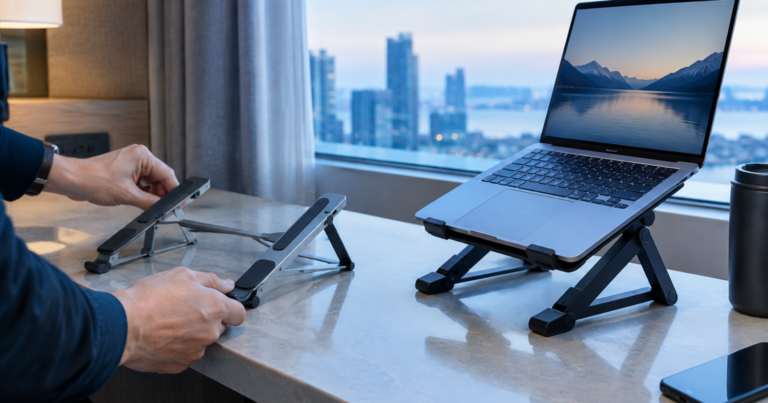
A compact laptop stand is the cleaner solution if you work full days from hotels often. For occasional trips, improvised supports can work, but the stack needs to be firm, flat, and wide enough to keep the laptop steady during typing, video calls, and cable movement.
Do not chase perfect height at the cost of stability. A slightly lower screen on a solid base is better than a tall, shaky tower of books and toiletry bags. If you are using a portable monitor, place the primary screen directly in front of you and the secondary display slightly to the side. Put the screen you read or type into most often in the central position.
Step 2: make the chair less hostile
Hotel chairs often fail in one of three ways: the seat is too low, the back support is too far away, or the padding encourages you to sink backward. You probably cannot change the chair, but you can change how your body meets it.
For a chair that is too deep
Place a pillow or folded towel behind your lower back. The aim is to shorten the seat depth so your back has support while your feet can still rest on the floor. If your feet hover, use a small bag or folded towel as a footrest.
For a chair that is too low
Raise your sitting position with a firm folded blanket or cushion only if it feels stable. If that makes your feet dangle, add a footrest. If the chair still feels awkward, lower the screen and keyboard slightly rather than forcing a tall setup around a low seat.
For a chair with no useful back support
Build a simple lumbar roll with a bath towel. Roll it tightly, place it at the curve of your lower back, and adjust until your shoulders can relax. This is not medical treatment; it is a practical comfort fix for a temporary workday.
Step 3: put the keyboard and mouse where your arms want them
The keyboard should sit close enough that you are not reaching. Keep the mouse or trackpad on the same level and near the keyboard, not stranded at the far edge of the desk. If the desk is narrow, angle the laptop stand slightly or slide the keyboard partly under the front edge of the stand when you are reading.
For full-day hotel work, a separate keyboard and mouse usually earn their space more reliably than a larger stand alone. The stand improves viewing; the keyboard and mouse preserve comfortable arm position. Together they turn a raised laptop from a display hack into a real workstation.
If you are building a minimal kit for your first serious travel workday, start with the basics in one laptop, one charger, and one backup connection, then add ergonomic pieces only after you know which discomfort repeats.
Step 4: make lighting work for calls and concentration
Lighting affects comfort and how professional you look on video. Start by facing a window if the light is soft and even. If the window is bright behind you, your camera may darken your face and the screen may pick up glare. Move sideways, close curtains partially, or switch to lamp light.
For evening work, place a lamp beside the laptop rather than directly behind the screen. Side light is often enough to soften shadows without shining into your eyes. If the desk lamp has a harsh bulb or fixed angle, aim it at the wall or ceiling to bounce light instead of pointing it at your face.
On calls, check the camera frame before the meeting starts. Lift the laptop enough that the camera is not looking up from the desk, clear distracting clutter behind you, and keep your face brighter than the background. The setup does not need to look studio-grade; it needs to look intentional.
Step 5: solve outlets before they interrupt you
Power is part of ergonomics because cable tension changes where you can place devices. Before settling in, find the usable outlets, not just the visible ones. Some are behind heavy furniture, some are controlled by wall switches, and some are already occupied by lamps or clocks.
Set the charger so the cable reaches the laptop without pulling sideways on the port. If you use a USB-C hub, dock, or portable monitor, check whether the cable supports the display and power behavior you expect. The Travel Work Gear Compatibility Checker is useful for confirming cable, display, charging, and power-bank constraints before a trip rather than troubleshooting them five minutes before a call.
If the only outlet is across the room, move the desk setup if you can. If you cannot, charge during breaks and reduce cable crossings near your feet. Avoid creating a trip line between the bed, chair, and bathroom path; hotel rooms already have enough small ambushes.
Packable gear versus improvised fixes
Improvised fixes are excellent for one night. A towel can support your back, a book can raise a screen, and a suitcase can become a footrest. The trade-off is repeatability: every room requires another little engineering session.
Packable gear makes sense when the same problem shows up on multiple trips. A slim laptop stand, compact keyboard, small mouse, cable pouch, and noise-reducing headphones can make the setup faster and more predictable. The best travel kit is not the biggest kit; it is the set of items that removes the same friction every time without overfilling your bag.
Use a simple rule: improvise once, note the annoyance, upgrade only if it repeats. That keeps your bag from becoming a museum of solutions to problems you had exactly once.
Common mistakes that make a hotel desk worse
- Raising the laptop without a keyboard. This improves your neck and punishes your arms. Pair screen height with separate input devices whenever possible.
- Sitting too far from the desk. Reaching forward all day creates tension quickly. Bring the chair in, then adjust the keyboard.
- Ignoring desk depth. A shallow desk may not fit a laptop stand, keyboard, and mouse comfortably. Choose a simpler layout instead of crowding everything.
- Letting cables decide the layout. Find power first, then place the screen and keyboard. Otherwise the charger drags the whole setup out of alignment.
- Working in one position all day. Even a good temporary setup benefits from movement. Stand during phone calls, stretch during file uploads, and reset the chair after breaks.
Straight answers
What is the fastest way to improve a hotel desk setup?
Raise the screen, use a separate keyboard and mouse, and add lower-back support with a pillow or towel. Those three changes usually do more for comfort than rearranging the whole room.
Can I make a hotel desk ergonomic without buying gear?
Yes, for short trips. Use firm books, towels, pillows, and luggage to adjust screen height, back support, and foot position. For repeated full workdays, a small stand and separate input devices make the ergonomic hotel room workspace easier to recreate.
Should I work from the bed instead?
Use the bed for reading or light admin, not a full day of typing and calls. It usually gives poor back support, awkward wrist angles, and inconsistent camera framing. A flawed desk can usually be improved more than a bed can.
Leave the room ready for tomorrow
At the end of the day, do a two-minute reset. Coil the cable without unplugging the charger from the wall, leave the stand and keyboard in place if housekeeping will not need the surface, and put your call items together: headphones, charger, notebook, and water.
A good hotel desk setup is mostly sequencing. Lift the screen, free your hands from the laptop, support the chair, control glare, and secure power. Do that in order and the room becomes less random, even when the furniture is not on your side.