Second-screen decisions get expensive when they are made from a perfect-desk fantasy. On the road, the right choice has to survive shallow hotel desks, lounge tables, tight train seats, awkward outlets, and the five minutes you actually have before a call. The real portable monitor vs tablet decision is not about which screen is more impressive; it is about which one creates the least friction for the work you do most often.
In brief
For most laptop-first travel work, choose a dedicated portable monitor when you need a larger, predictable extension of your laptop workspace for spreadsheets, coding, documents, or client-facing screen sharing. Choose a tablet when you value flexibility, note-taking, media review, reading, and a self-contained screen that can still be useful away from the laptop.
The best second screen is not the one that recreates your home desk. It is the one that works reliably in imperfect rooms. That is the same logic behind designing for uncertainty instead of rebuilding a home desk: reduce the number of assumptions your workday depends on.
Step 1: Start with the job the screen must do
Before comparing sizes, stands, and ports, write down the work moments where one laptop screen slows you down. Be specific. “More space” is vague; “keep a spreadsheet visible while editing a proposal” is useful.
- Need reference material beside your main writing window? A second screen helps, but it does not have to be large.
- Need two full-width apps open all day? A portable monitor will usually feel more natural than a tablet used through screen-extension software.
- Need to mark up PDFs, sketch, review slides, or read long documents? A tablet may earn its bag space even when it is not connected as a monitor.
- Need to present to one or two people across a table? A tablet can be easier to hand over; a portable monitor can be better when it stays beside your laptop.
This step keeps you from buying for a fantasy workflow. Travel gear should solve the work you actually repeat, not the rare task that might happen once.
Step 2: Use the workflow matrix
Use this matrix as a practical first filter. It is not a ranking; it is a way to match screen type to the work environment and the cost of friction.
- Coding: A portable monitor is usually the stronger choice when you want documentation, logs, preview windows, or a terminal visible beside the editor. A tablet works better for lighter reference use or when desk space is tight.
- Spreadsheets: A portable monitor usually wins because grid-heavy work benefits from a stable extended desktop. A tablet can work for review, but it can feel cramped or fiddly if you are actively moving between cells, formulas, and source material.
- Client demos: A tablet is often easier to pass across a table or use as a clean presentation surface. A portable monitor is better when the demo depends on your laptop setup and you want the client view to stay fixed.
- Design and visual review: A tablet can be useful for annotation, sketching, and touch-first review. A portable monitor can be better for layout space, tool palettes, and keeping the main laptop display free for editing.
- Flights and trains: A tablet is usually the safer pick because it is self-contained and more tolerant of cramped seats. A portable monitor can be awkward unless you have a stable tray table, enough elbow room, and a simple cable path.
- Hotel desks: A portable monitor works well when the desk has enough depth, a stable surface, and an outlet plan. On narrow desks, a tablet on a compact stand may create less clutter.
- One-bag travel: A tablet has an advantage if it replaces other roles, such as reading, notes, entertainment, or document markup. A portable monitor is easier to justify when the second-screen function is essential to paid work.
- Power draw: A tablet has its own battery but still needs charging. A portable monitor may draw from the laptop or another power source, which can shorten unplugged sessions or add cable complexity.
- Stand stability: Tablets often have reliable case-style stands, though angles vary. Portable monitors depend heavily on the stand or cover design; a wobbly stand can turn a good display into a daily annoyance.
- Setup time: Tablets are fast when they are already paired and charged. Portable monitors are fast when the cable path is known and the laptop remembers the display layout.
Step 3: Check the connection path before you pack
A second screen is only useful if the laptop, screen, cable, and software agree with each other. Do not assume that a USB-C-shaped port means video will work. Some ports charge, some transfer data, some output video, and some do several of those jobs depending on the device.
For a portable monitor, confirm four things before travel: the laptop output, the monitor input, the required cable, and whether power is separate or shared. If your setup depends on a high-capability USB-C or Thunderbolt connection, check the actual port behavior rather than the connector shape; the Thunderbolt 3 reference is a useful starting point for understanding why labels matter.
For a tablet, the connection question is different. A compatible laptop and tablet may support a built-in second-screen mode, but support varies by operating system, device generation, account setup, and software. If you rely on a third-party app, rehearse it before the trip and check how it behaves after sleep, Wi-Fi changes, and hotel-network logins.
Step 4: Decide how much power friction you can tolerate
Power is where sleek desk photos stop being helpful. A portable monitor that needs power from your laptop may simplify the wall-outlet situation but increase drain on the laptop. A monitor that uses separate power can protect laptop runtime but adds another cable and possibly another charger port. A tablet avoids the live power draw problem while it has charge, then becomes another device to manage.
Build a small power map before packing:
- List your laptop, phone, second screen, headphones, and any hotspot or router you carry.
- Note which devices must charge during work, not just overnight.
- Choose whether the second screen can run from the laptop or needs its own power path.
- Match the cable to the job. For the power side of your kit, the USB-C 60 W cable rating helps separate charging capability from wishful thinking.
If you use a power bank, check airline battery rules separately before packing. A screen decision that works on a desk can still fail as travel gear if the charging plan is not carry-on friendly.
Step 5: Test the desk, stand, and glare problem
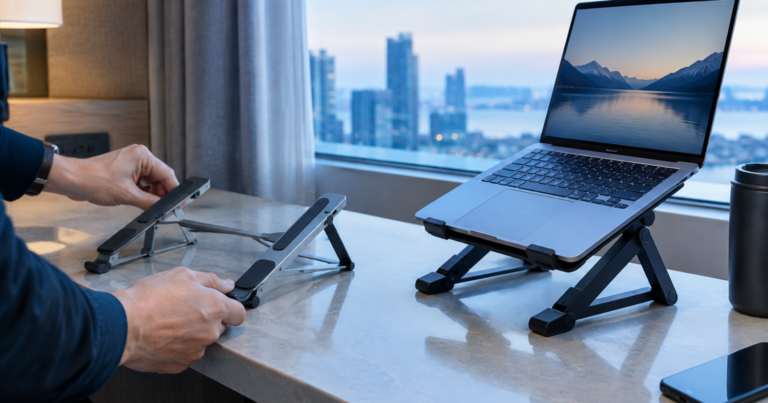
Second screens take more room than their diagonal size suggests. You need the screen, stand angle, cable bend, laptop position, and space for your hands. A hotel desk that is 18 inches deep can feel crowded once the laptop is open and the display leans backward. A 24-inch-deep desk is much more forgiving.
Do a quick physical check at home before relying on the setup:
- Place your laptop and second screen on a surface about the size of a small hotel desk.
- Leave room for a mouse or notebook only if you actually travel with one.
- Run the cable exactly as you would on the road, including any hub or charger.
- Set a timer and see whether the whole setup is usable in five minutes.
- Move a lamp or window reflection across the display to check glare tolerance.
Stand design matters more than spec sheets admit. A tablet case that holds one angle may be fine for reading but poor for long writing sessions. A portable monitor cover that folds into a stand may pack neatly but still need a stable surface. If the screen tips when you touch the keyboard, that annoyance will follow you across every temporary desk.
Step 6: Choose the packing rule
Once you know the workflow, connection, power, and desk constraints, choose one of four packing rules.
- No second screen: Best when the trip is call-heavy, transit-heavy, or short enough that extra setup time is not worth it. Use virtual desktops, split-screen layouts, and tighter task batching instead.
- Tablet as second screen: Best when you want one device that can also handle reading, notes, markup, entertainment, and quick client sharing. An Apple iPad Air is a common reference point for this style of setup, but compatibility with your laptop workflow should be verified before buying around it.
- Dedicated portable monitor: Best when your work repeatedly benefits from a stable extended desktop. A model such as the ASUS ZenScreen MB16QHG is useful to compare against because it represents the dedicated portable-monitor category rather than a multipurpose tablet approach.
- Second screen plus keyboard stand system: Best for longer stays where posture and layout matter more than minimal packing. This can be the most comfortable setup, but it also has the most pieces to deploy and protect.
The right rule may change by trip. A conference week with demos and travel days may favor a tablet. A month in one rental with spreadsheet-heavy work may justify a dedicated monitor. A two-night client visit may be better with no second screen at all.
Common mistakes that make second screens annoying
- Buying by screen size only: Larger screens can be better, but only if the stand, cable route, and desk depth support them.
- Ignoring cable identity: A cable that charges one device may not carry video, data, or enough power for another setup.
- Skipping the first-use rehearsal: Pairing, permissions, display arrangement, and scaling should be handled before the workday starts.
- Packing a fragile screen without a protection plan: Thin displays still need a safe place in the bag, away from pressure points.
- Assuming every stay has the same desk: Rentals, hotels, coworking booths, and train tables all punish different gear choices.
- Letting the second screen create more window management: More display area helps only when your app layout is repeatable.
Key questions answered
What is the safest portable monitor vs tablet choice for one-bag travel?
A tablet is usually the safer one-bag choice when it replaces several roles and does not need to be connected all day. A portable monitor is the better one-bag choice only when the second-screen function is important enough to justify a dedicated item that does little else.
Is a tablet good enough for full workdays?
It can be, but only for the right work. A tablet is strong for reference, notes, reading, review, and occasional screen extension. If your full workday depends on two desktop-style windows staying open side by side, a dedicated portable monitor will usually be less fussy.
Should you carry a second screen for every trip?
No. Treat it as a trip-specific tool. If your schedule is packed with calls, travel segments, and short work blocks, a second screen may slow you down. If you have long desk sessions with complex documents, code, spreadsheets, or creative review, it can make the day feel more controlled.
Practical takeaway
Choose the second screen that makes your real travel work more repeatable, not the one that looks most like a permanent office. If the work is laptop-centered, desk-based, and window-heavy, lean toward a portable monitor. If the trip is mixed, mobile, and document-heavy, a tablet may carry its weight better. Either way, test the connection, power path, stand angle, and packing position before the screen earns a place in your bag.