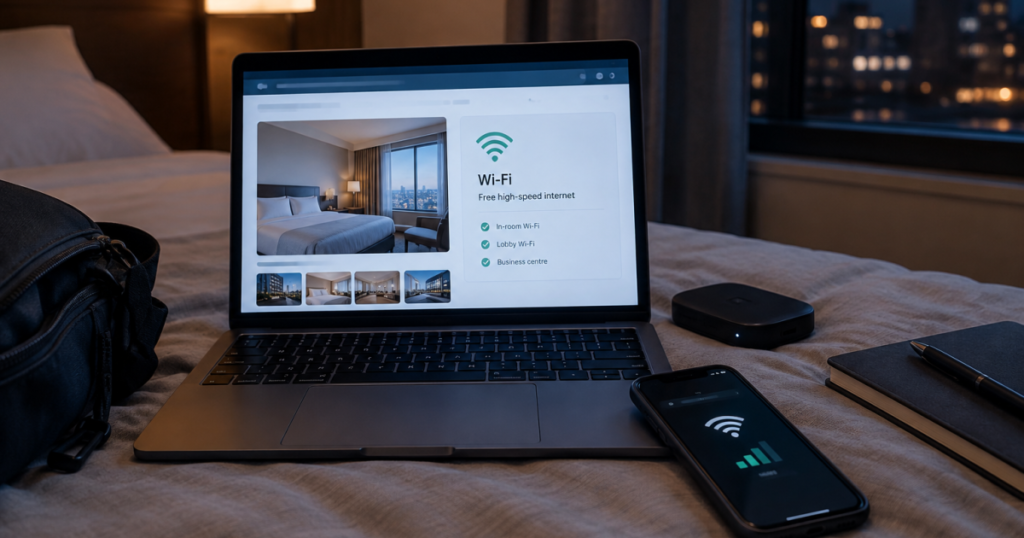
A room can have the right desk, a quiet floor, and a promising lobby photo, then still fail the moment your first client call starts. The cleanest move is to check hotel Wi-Fi before you book, using a few direct questions and a simple decision rubric instead of trusting “free high-speed internet” on a listing.
For remote work, you are not only buying a bed for the night. You are buying enough connection stability to upload your voice, share a screen, join meetings, and recover quickly when the network gets crowded.
The big picture
Ask the hotel or rental host for a recent in-room speed test from the exact room type or unit you plan to book, including download speed, upload speed, latency, and jitter. Also ask whether Ethernet is available, whether the signal is strong at the desk or work surface, what backup exists if the guest network fails, and whether cellular hotspot reception is usually usable in the room.
For a solo work stay with video calls, a current test showing roughly 25 Mbps download, 10 Mbps upload, latency under about 50 ms, and low jitter is a reassuring sign, not a guarantee. Network performance changes with occupancy, building layout, hardware, and time of day, so the real goal is not perfection; it is reducing the chance that your workday depends on a vague amenity line.
Step 1: send a specific message before booking
Vague questions get vague answers. “Is the Wi-Fi good?” often returns “Yes, guests use it all the time,” which tells you almost nothing about upload reliability, room signal, or meeting performance.
Use this copy-and-paste script:
“Hi, I’m considering booking for a remote-work stay and will need reliable internet for video calls. Could you share a recent speed test taken inside the room or unit, ideally from the desk or main work area? I’m looking for download speed, upload speed, latency/ping, and jitter if available. Is there Ethernet in the room, and is there a lobby, business center, or other backup workspace if the guest Wi-Fi has an issue? Also, do guests usually get usable cellular service in the room for hotspot backup?”
That message does three useful things. It signals that you have real work needs, asks for measurable information, and exposes whether the property understands the difference between general browsing and work-critical connectivity.
Step 2: judge the answer, not just the number
A screenshot is better than a promise, but read it carefully. Download speed gets the attention because it is the biggest number. For calls, cloud work, file uploads, live collaboration, and screen sharing, upload speed and consistency deserve equal attention.
- Download speed: Useful for loading files, dashboards, browser tabs, software updates, and media-heavy pages.
- Upload speed: Important for video calls, screen sharing, sending files, cloud backups, and live collaboration.
- Latency or ping: Lower is better for real-time conversation. High latency can make calls feel delayed even when speed looks fine.
- Jitter: Variation in latency. High jitter can cause choppy audio, freezes, and unstable calls.
- Test location: A lobby result does not prove the connection works at the desk in your room.
- Test timing: A midafternoon test may look better than a crowded evening network.
If you are trying to interpret a speed result for meetings, use this breakdown of whether 25 Mbps is enough for Zoom and Teams while traveling as a practical companion. The headline number only earns confidence when upload, latency, and signal strength line up with your actual workday.
Step 3: confirm the signal where you will actually work
Hotel Wi-Fi can be excellent in the lobby and poor behind a thick wall three floors up. Rentals can have the router in a hallway, a locked closet, or another unit. The detail you want is simple: “Was the test taken from the place I’ll sit with my laptop?”
Ask for the test to be taken from the desk, dining table, or main work surface. If the listing shows several room categories, be clear about the exact one you are booking. A suite, corner room, basement unit, courtyard room, or older wing can have a very different signal from the front-desk area.
Also ask whether each room has its own access point or whether rooms share hallway coverage. You do not need a full network diagram; you are listening for whether the property can answer confidently and specifically.
Step 4: look for backup paths before you need them
Good mobile-office planning is not pessimism. It is how you keep a normal Tuesday from becoming a connectivity drama. A usable fallback can turn a weak property answer from “no” into “maybe,” depending on the consequences of your work.
- Ethernet: Ask whether the room has an active Ethernet port and whether guests are allowed to use it. Do not assume a visible wall jack is live.
- Lobby or business center: A backup work area helps if your room signal fails, though it may not be quiet or private enough for calls.
- Phone hotspot: Check carrier coverage maps, but treat them as a starting point rather than a promise of indoor service.
- Nearby coworking or café: For high-stakes calls, identify a second location before arrival, not five minutes before the meeting.
- Flexible booking terms: If the work risk is high, cancellation flexibility has real value.
This is the same logic behind a resilient travel setup: design around uncertainty rather than pretending every room will behave like your normal desk. For a broader planning mindset, the piece on designing for uncertainty as a mobile worker pairs well with this Wi-Fi check.
Step 5: search reviews like a working guest, not a vacation guest
Review platforms can be noisy, but they are still useful if you search with the right terms. Do not stop at the property’s overall rating. Search reviews for words that expose workday problems.
- “Wi-Fi”
- “internet”
- “remote work”
- “Zoom”
- “Teams”
- “video call”
- “signal”
- “router”
- “business center”
- “Ethernet”
Read the dates. A complaint from months ago may have been fixed, and a glowing review from a leisure traveler may not reveal anything about upload stability. The most useful review says where the guest worked, what they tried to do, and whether the connection held during calls.
A simple decision rubric
Use this as a fast booking filter when you are comparing two or three decent-looking options.
Green light
- The host shares a recent in-room test from the work area.
- Upload speed is strong enough for your calls and file workflow.
- Latency is reasonable and jitter is not flagged as high.
- There is a credible fallback: Ethernet, lobby workspace, business center, hotspot reception, or a nearby second workspace.
- Recent reviews mention stable internet for work or calls.
Proceed carefully
- The property gives only download speed.
- The test is from the lobby, not the room.
- Reviews are mixed, but recent ones are better.
- Your important calls are limited, movable, or low-risk.
- You have a strong hotspot plan and flexible booking terms.
Skip it for serious work
- The host cannot provide any measurable connection information.
- Reviews repeatedly mention dropped connections or weak room signal.
- There is no backup workspace and poor cellular reception.
- Your stay includes presentations, interviews, client calls, live teaching, or deadline-heavy uploads.
What to do right after check-in
Run your own test before you unpack fully. Test from the desk or table, then from the bed or seating area if you might work there later. Join a test meeting, turn on video, share your screen, and upload a small file to the cloud. If the room fails early, you still have time to ask for another room, move closer to an access point, or shift to your backup location.
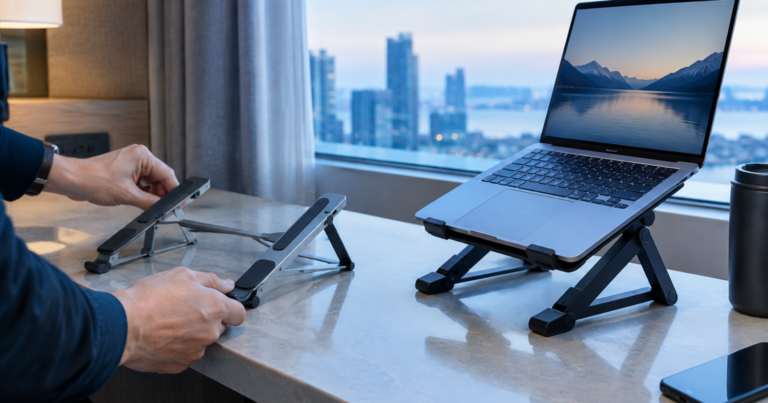
While you are setting up, place your laptop where the signal and ergonomics both work. A fast connection is less useful if the only strong signal is on a nightstand under bad lighting. For a fast comfort reset once the connection is solved, use the hotel-room setup ideas in how to make a hotel desk ergonomic in minutes.
Quick answers
Can I check hotel Wi-Fi if the property will not run a speed test?
You can still reduce risk by searching recent reviews, asking about Ethernet, checking cellular coverage, and confirming backup workspace options. If the stay includes important calls, a property that will not provide any measurable answer is a weaker choice.
Is download speed enough to judge work Wi-Fi?
No. Download speed is only one part of the picture. Remote work also depends on upload speed, latency, jitter, in-room signal strength, and how the network performs when many guests are online.
Should I trust “high-speed Wi-Fi” in a listing?
Treat it as a starting claim, not proof. Ask for a current in-room test and read work-related reviews. Listing language is often too broad to confirm call quality or upload reliability.
What if the Wi-Fi is fine but not private?
Use your employer-approved security practices for sensitive work, such as required VPN or managed device policies. Do not assume a hotel or rental network is secure simply because it has a password.
Practical takeaway
The best pre-booking Wi-Fi check is direct, measurable, and room-specific. Ask for upload speed, download speed, latency, jitter, test location, Ethernet, backup workspace, and hotspot viability. Then compare the answer against your actual work risk. A casual admin day can tolerate more uncertainty; a day of client calls deserves a property that can prove the connection, not just advertise it.