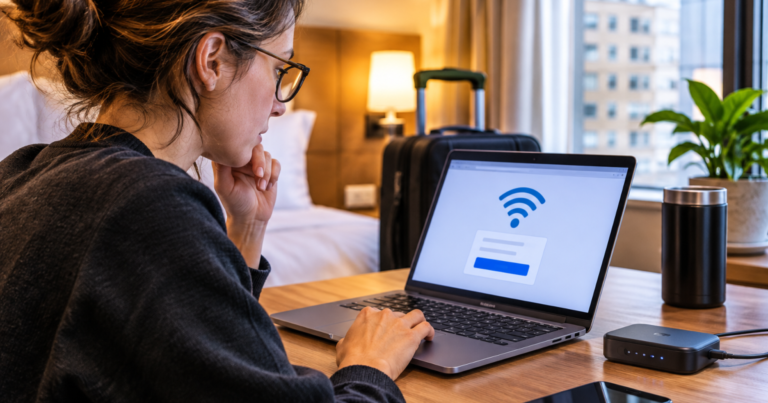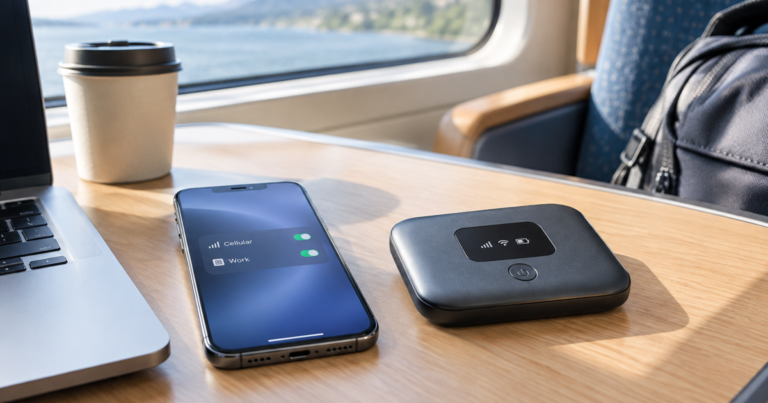
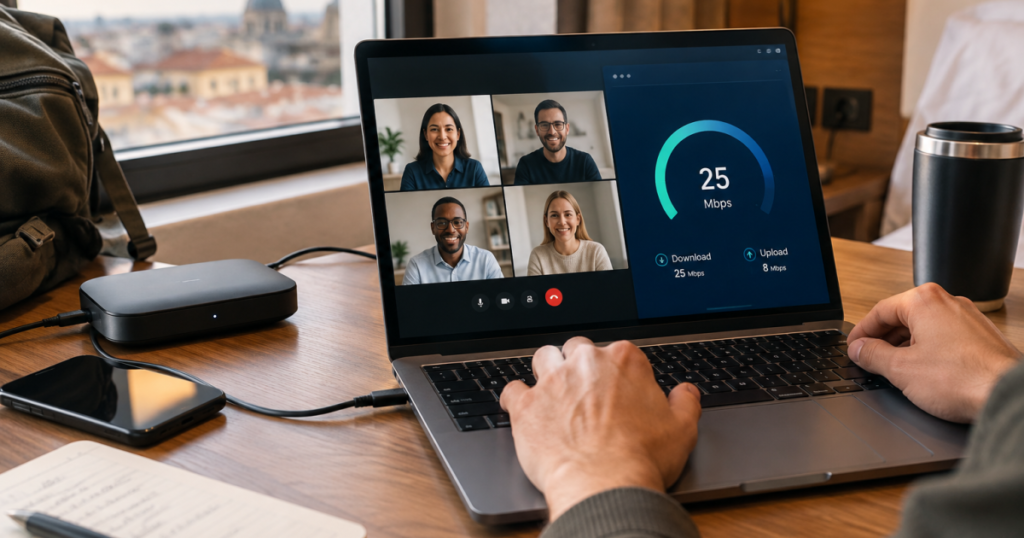
A 25 Mbps hotel Wi-Fi result can look reassuring right up until your slide share freezes or your audio drops. For Zoom and Teams calls, the better question is not only “is 25 Mbps enough?” but “is the upload stable, shared, and available at the desk where I’m working?” Treat 25 Mbps as a workable starting point, then verify it like a travel tool rather than a promise.
For most solo remote workdays, 25 Mbps download is enough for Zoom or Microsoft Teams if the upload speed is at least a few Mbps, the connection is stable, and nobody else on the network is soaking up capacity. The trouble is that travel connections are rarely private, predictable, or measured from the exact spot where you will take the call.
What to know first
A remote worker should plan for at least 5 Mbps download and 3 Mbps upload for a standard HD video meeting, with 10 Mbps down and 5 Mbps up giving more room for group calls, screen sharing, cloud documents, and background network activity. A measured 25 Mbps download connection is usually enough, but only if upload speed, latency, and packet stability are also decent.
Published bandwidth guidance from Zoom and Microsoft Teams puts many common video-call modes in the low single-digit Mbps range. That is why 25 Mbps can be plenty on a clean home connection. On a hotel, rental, airport lounge, or conference Wi-Fi network, the number you see in a speed test may not reflect what happens 20 minutes into a crowded afternoon.
If you are building your first dependable travel setup, think in layers: primary Wi-Fi, backup hotspot, charged devices, and a known camera-off fallback. The plan in one laptop, one charger, one backup connection is a useful baseline for keeping the kit simple without leaving yourself exposed.
Download speed is only half the story
Download speed controls how quickly your device receives other people’s video, shared screens, files, and cloud content. Upload speed controls how well you send your own camera feed, microphone, screen share, and meeting reactions back to everyone else. Video calls fail in very visible ways when upload is weak, even if download looks generous.
This is where the classic travel-speed-test trap appears: a hotel network may show 25 Mbps down and 1 Mbps up. That can feel fine while browsing, checking email, or loading cloud documents, but it is much less comfortable when you need to present slides with your camera on. For call reliability, upload deserves equal attention.
Latency and jitter also influence call quality. Latency is the delay between your device and the meeting service. Jitter is inconsistency in that delay. You do not need to become a network engineer before a client call, but if the speed test shows unstable results across several runs, assume the call may be uneven and prepare a backup.
Bandwidth planner for common travel scenarios
The planning allowances below translate official Zoom and Microsoft Teams bandwidth guidance into practical travel decisions. They are not guarantees, because performance still depends on the local network, device, operating system, meeting settings, and the number of people sharing the connection.
- Camera off, audio only: Plan around 1 Mbps up and down, but keep 2 Mbps available if you are also using chat, documents, or browser tabs. This is the fallback when hotel Wi-Fi is marginal.
- One-on-one video call: Plan for about 3 Mbps up and down for a comfortable HD call. A clean 25 Mbps connection should handle this easily.
- Group video meeting: Plan closer to 5 Mbps up and down. Group calls add more incoming video streams and can be less forgiving when the network gets busy.
- Screen sharing with your camera on: Plan for 5 to 10 Mbps download and at least 3 to 5 Mbps upload. If you are presenting, upload stability becomes the critical piece.
- Airport lounge call: A 25 Mbps result may be enough early in the morning and poor when the lounge fills up. Test from your seat, not from the hallway, and keep phone tethering ready.
- Phone hotspot: A hotspot can be excellent or weak depending on carrier coverage, signal strength, building materials, congestion, and your device plan. Do not assume the hotspot is better than Wi-Fi until you test it.
- Shared hotel Wi-Fi: 25 Mbps down is a good sign, not a commitment. Run two or three tests, check upload, and start important calls with a fallback path already chosen.
So, is 25 Mbps enough?
Yes, 25 Mbps is enough for many Zoom and Microsoft Teams meetings when it is a real, stable 25 Mbps connection with usable upload speed. It is not enough as a single planning number for a travel workday, because travel networks change with time, location, walls, occupancy, and competing devices.
For a low-risk internal standup, 25 Mbps down with 3 Mbps up may be perfectly workable. For a client presentation, interview, livestreamed training session, or meeting where you are the main speaker, you want more margin. The goal is not chasing huge speed numbers; it is reducing the number of ways the call can degrade at the same time.
There is also a difference between joining and leading. If you are mostly listening with your camera off, the bandwidth requirement is modest. If you are presenting a deck, sharing a browser, running a demo, and keeping your camera active, your connection has more to carry. The same 25 Mbps result can feel generous in the first case and thin in the second.
A five-minute arrival test before an important call
Run this check when you reach a hotel room, rental, coworking booth, or temporary desk. It is quick enough to do before unpacking fully and concrete enough to expose the weak links.
- Test from the actual work spot. Sit where you will take the call, connect to the same Wi-Fi, and run a speed test from there. A desk tucked behind a wall can perform differently from the bed or lobby.
- Look at upload separately. If download is 25 Mbps but upload is near 1 Mbps, plan for camera-off mode or use another connection.
- Repeat the test. Run it twice, a few minutes apart. Wildly different results suggest congestion or poor signal.
- Open the meeting app early. Let Zoom or Teams update, authenticate, and settle before the meeting clock starts.
- Test audio before video. Clean audio is more valuable than a sharp image. If the connection is shaky, turn off incoming HD video, stop background uploads, and keep your camera off until needed.
- Check your backup connection. Confirm that your phone hotspot works from the room and that your laptop can connect to it quickly.
When hotel Wi-Fi is the weak link
Hotel Wi-Fi often fails because it is shared, not because the headline speed is terrible. Evening congestion, conference traffic, thick walls, captive portals, and devices roaming between access points can all make a decent connection feel unreliable. If your meeting is important, do not wait for the first freeze to decide what to do.
Start by reducing demand. Close cloud backup tools, pause large downloads, stop video streaming, and shut down extra browser tabs that constantly refresh. If the room signal is weak, move closer to the hallway side of the room or another known strong spot, as long as your call environment stays professional enough.
If the network is still uneven, switch modes before the meeting deteriorates: camera off, audio only, dial-in audio if the meeting allows it, or phone hotspot. This is not a failure of your setup; it is exactly why mobile work benefits from redundancy. The broader mindset is covered well in building for uncertainty instead of recreating a home desk.
How a hotspot changes the calculation
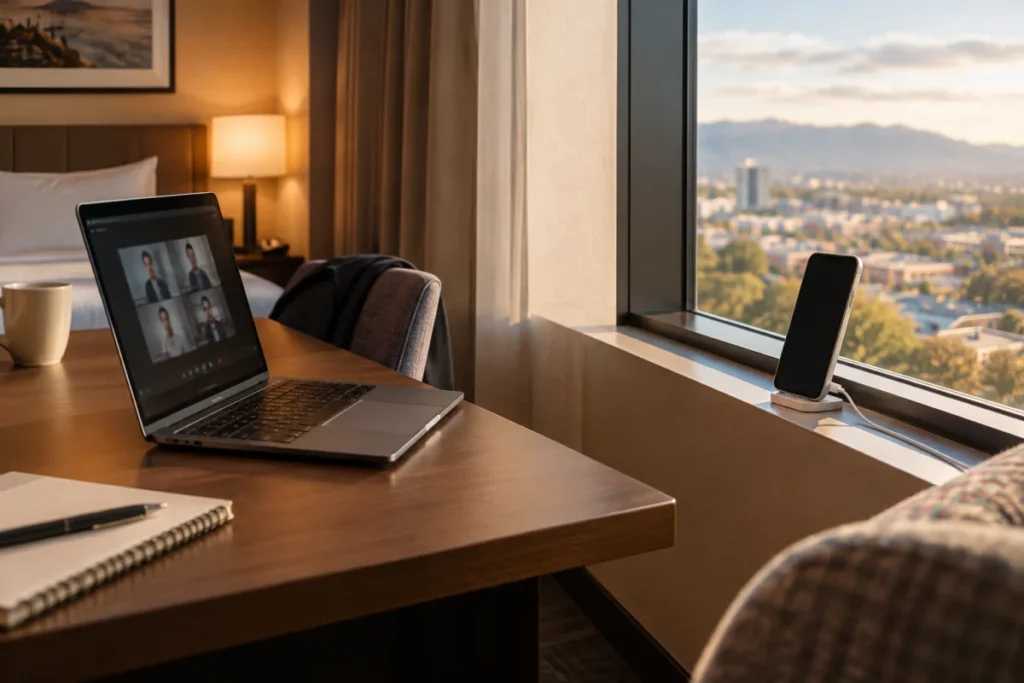
A phone hotspot or dedicated mobile hotspot can rescue a workday, but it should be treated as a second connection, not a magic connection. Cellular performance depends on the network at that address, indoor signal, local congestion, device placement, and plan conditions. A window seat can outperform the desk by a surprising margin.
Before relying on a hotspot, test it with the laptop you will use for the call. Some problems only appear after the laptop connects: VPN behavior, captive network settings, device limits, or a battery-draining setup that looked fine for two minutes. Keep the phone plugged in when possible, because hotspot use can drain a battery quickly.
For long meeting days, portable power becomes part of connectivity. If you carry higher-capacity spare batteries or power banks for phones, hotspots, and laptops, check the airline approval range for larger spare lithium-ion batteries before flying. The best backup connection is less useful if the devices feeding it are running down.
Questions people ask
Is 25 Mbps download enough if upload is only 2 Mbps?
It can be enough for a basic call, especially with your camera off, but it is tight for presenting with video on. For screen sharing or leading a meeting, aim for at least 3 to 5 Mbps upload and keep a hotspot ready.
Do Zoom and Microsoft Teams need the same speed?
Their published requirements are broadly similar for common video meetings: audio uses little bandwidth, while HD video, group calls, and screen sharing need more. Real-world reliability depends more on stability, upload, and congestion than on the small differences between the platforms.
Should I turn off video on hotel Wi-Fi?
Not automatically. If the connection is stable, video is fine. If upload is weak, latency is jumping, or you are presenting, turning off video is one of the fastest ways to protect audio and screen sharing.
Is a faster plan always better?
Not always. A stable 25 Mbps connection can beat a faster but erratic shared network. For travel work, consistency, upload, and a tested backup are often more valuable than a flashy download number.
Key takeaways
For a remote worker, 25 Mbps download is usually enough for Zoom and Teams while traveling when the upload speed is healthy and the connection stays stable. Use 5 Mbps down and 3 Mbps up as a practical minimum for a typical HD call, and prefer 10 Mbps down with 5 Mbps up when you are presenting, screen sharing, or joining a larger meeting.
The cleaner habit is to test the connection from the actual workspace, check upload separately, and decide your fallback before the meeting begins. Travel work is calmer when the setup is built around what can change: Wi-Fi load, room signal, battery level, and the need to switch quickly from polished video to dependable audio.