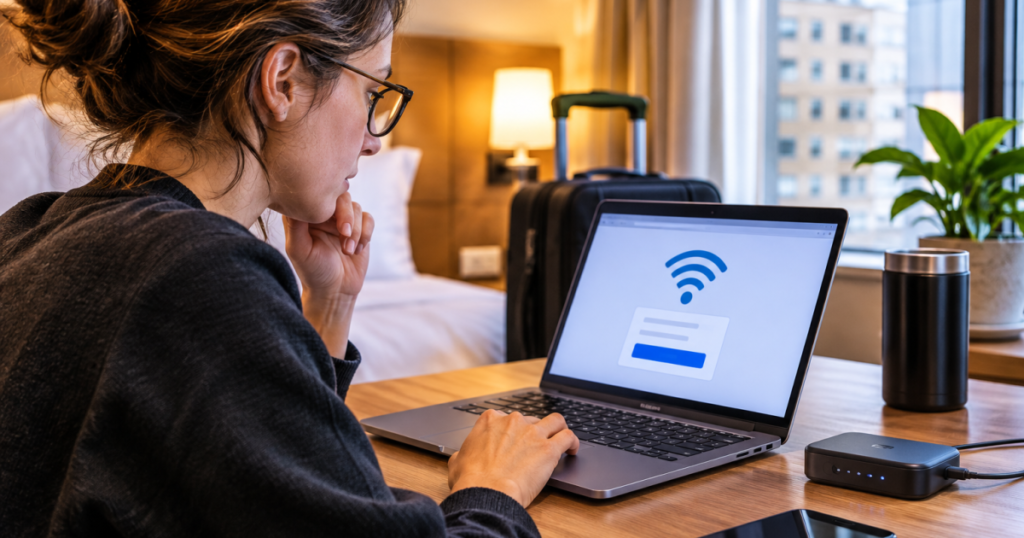
A travel router can make one hotel connection feel like a controlled workspace—until the hotel Wi-Fi captive portal refuses to appear. When that login page stalls, the fix is usually not “try harder”; it is finding which layer is blocking the handoff between your device, the router, the hotel network, and the authorization page.
The goal is simple: get authorized quickly enough that your call, upload, or deadline does not turn into lobby archaeology. Use the checks below in order, because random toggling is how a five-minute fix becomes a half-hour ritual.
The big picture
If your laptop connects to your travel router but the hotel login page will not open, troubleshoot in this order: confirm the router is actually connected to the hotel Wi-Fi, pause VPN and private DNS features, open a plain HTTP site to trigger the login page, check whether MAC randomization has registered the wrong device, and ask hotel IT to authorize the router’s WAN MAC address if the portal still will not load.
Think of the connection as four separate links. Your laptop joins the travel router. The router joins the hotel Wi-Fi. The hotel system authorizes a device. Only then does the internet work normally. The failure can happen at any of those points, and each symptom points to a different fix.
Step 1: Check whether the router joined the hotel network
Start in the travel router’s admin screen, not your laptop’s Wi-Fi menu. Your laptop may show a strong connection because it is connected to the router sitting two feet away; that tells you almost nothing about the router’s connection to the hotel access point.
- Confirm the router is connected to the correct hotel SSID, not an old saved network or a conference-room network with a similar name.
- Look for a WAN or internet status indicator in the router interface. If it says disconnected, the login page is not the first problem.
- Move the router closer to the room door or window if the hotel signal is weak. Hotel walls can turn Wi-Fi into a mood.
- If the network uses a shared password before the web login page, enter that password in the router first.
If you travel with a configurable router, it helps to know where these controls live before the trip. For a real-world example of the category and its travel-work tradeoffs, see the GL.iNet Beryl AX travel-router review.
Step 2: Force the login page with a plain browser request
Many modern browsers try to load secure HTTPS pages by default. That is good for normal browsing, but captive portals often need to intercept an unencrypted request first. If the browser only asks for locked-down pages, the hotel system may fail to redirect cleanly.
Connect your laptop or phone to the travel router, open a fresh browser window, and type a plain HTTP address such as neverssl.com, using http rather than https. You can also try a router status button labeled “detect portal,” “captive portal,” or similar if your router provides one. Do not start with a bookmarked work dashboard, cloud drive, or bank site; those are usually too security-hardened to trigger a hotel login page cleanly.
Once the login page appears, complete the hotel’s terms, room-number, name, or access-code process. Then test with a normal site and your work tools.
Step 3: Pause VPN, secure DNS, and privacy relays during authorization
VPNs and encrypted DNS are useful after the hotel network has let you online, but they can block or bypass the redirect needed to show the login page. Temporarily turn off your VPN, custom DNS, secure DNS, and browser privacy relay features while you authorize the connection.
- If your browser says the connection is private but nothing loads, try a different browser with extensions disabled.
- If your router is configured to use custom DNS, switch it temporarily to automatic DNS from the hotel network.
- If your employer requires a VPN, connect to the hotel network first, then start the approved VPN after the portal authorization is complete.
This is not a recommendation to work unprotected on public Wi-Fi. It is a sequencing point: authorize first, then apply your usual secure-access workflow.
Step 4: Deal with MAC randomization and device limits
Hotels often authorize a device by its MAC address, which is a network hardware identifier. Travel routers complicate this because the hotel may see the router’s WAN MAC address, while the login process might happen on your laptop or phone behind it.
If the login page works when your laptop connects directly to the hotel Wi-Fi but not when the laptop connects through the router, MAC handling is a likely culprit. Two fixes are common:
- Log in through the travel router’s own captive-portal workflow if it has one, so the hotel authorizes the router rather than only your laptop.
- If your router supports MAC cloning, clone the MAC address of the device that already completed the hotel login. Use your own device only, and follow your workplace’s network policies.
Also check whether the hotel limits the number of registered devices. If your phone, tablet, laptop, and router have all been trying to join, the portal may have hit a device cap. In that case, the front desk or hotel IT team can often clear old registrations or authorize the intended device.
Step 5: Know when to call the front desk or hotel IT
Call for help when the router is connected to the hotel SSID, VPN and private DNS are off, an HTTP page still will not redirect, and direct laptop login either fails or authorizes only the laptop. At that point, the block is likely in the hotel’s authentication system, not your packing discipline.
Use plain language: “I’m using a personal travel router for my work laptop. Can you authorize the router’s MAC address on the guest Wi-Fi?” Have the router’s WAN MAC address ready from its admin page. If the hotel does not allow travel routers, do not try to work around the policy; switch to a backup connection instead.
Step 6: Keep a backup path for calls
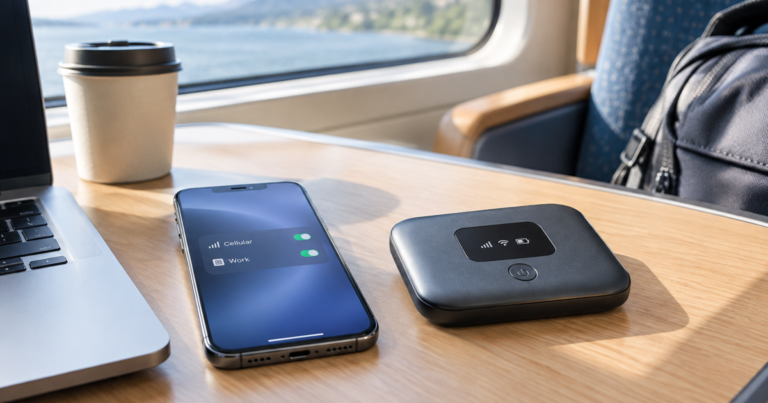
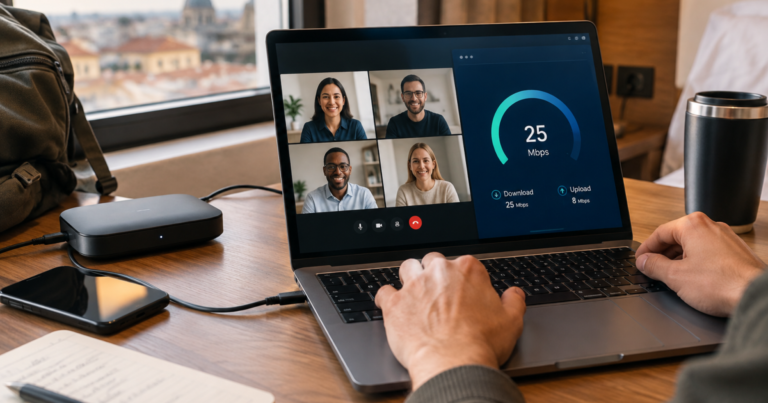
The worst time to design a fallback plan is two minutes before a client call. If the hotel network is still blocked, use a phone hotspot, a second SIM line, or a dedicated mobile hotspot if your data plan and signal support the workload. Upload stability is more important than a flashy download number when video calls and cloud saves are involved.
If you are deciding what kind of backup belongs in your kit, the comparison of a dual-SIM phone versus pocket Wi-Fi for work calls is the more useful next step than endlessly refreshing a broken portal.
Common mistakes that waste time
- Assuming “connected” means “online.” Your laptop can be connected to the router while the router has no approved path to the internet.
- Trying only HTTPS work sites. Use a plain HTTP request to trigger the login flow.
- Leaving VPN, custom DNS, or privacy relay features enabled during the first authorization attempt.
- Registering the laptop directly, then expecting the hotel to automatically recognize the router as the same device.
- Changing five settings at once. Make one change, test, then continue.
Fast answers
Why does the hotel Wi-Fi captive portal open on my laptop but not through the router?
The hotel may have authorized your laptop’s MAC address, not the router’s WAN MAC address. Use the router’s captive-portal workflow if available, clone your own authorized device’s MAC address if your router supports it, or ask hotel IT to authorize the router directly.
Should I leave my VPN off after the login page works?
No. Pause the VPN only long enough to complete the hotel authorization if it is blocking the redirect. After the network grants access, turn your employer-approved VPN or normal secure-access setup back on.
Can a travel router make hotel Wi-Fi faster?
Not by itself. A router can simplify device management and give you more control over your setup, but it cannot fix a congested hotel connection, weak upstream service, or a room with poor signal. It is a control tool, not a magic wand with antennas.
Main lessons
A blocked hotel login page is usually a sequencing problem: connect the router to the hotel network, trigger the portal with a simple browser request, remove DNS and VPN blockers for authorization, then resolve MAC-address registration if the hotel system recognizes the wrong device.
For a calmer travel-work setup, treat captive portals as one expected failure mode rather than a surprise. That mindset fits the broader approach in designing for uncertainty instead of recreating a mini home desk: carry enough redundancy to keep working, but not so much gear that every login page becomes a systems-engineering project.