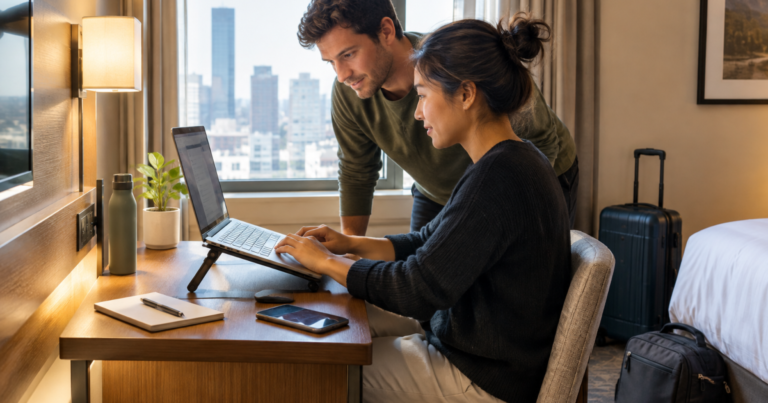
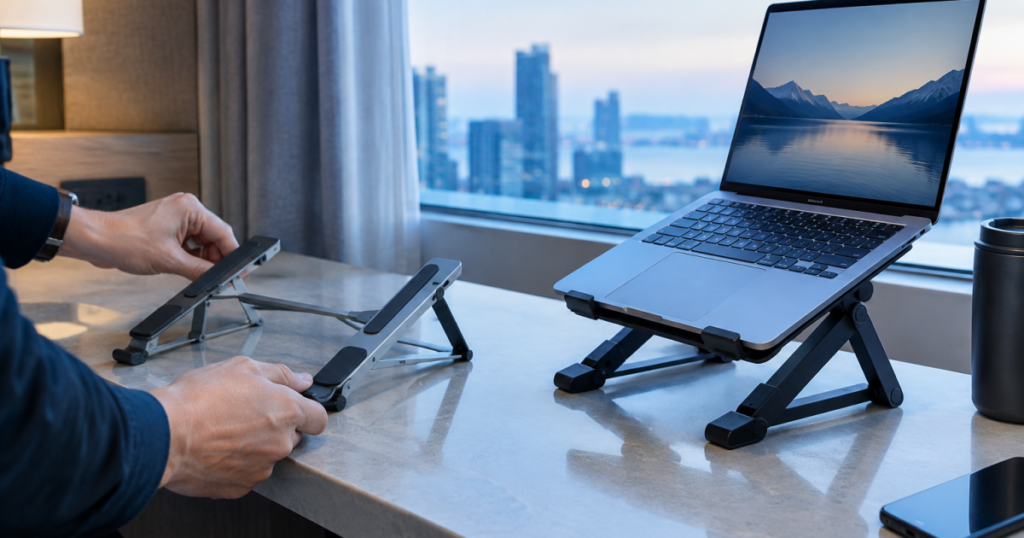
A wobbly stand is not a small annoyance when your camera is shaking, your wrists are reaching, and the desk is barely deep enough for a laptop. The right portable laptop stand for hotel desk work is only half the answer; the setup around it decides whether it feels solid by the first meeting.
The goal is not to recreate a perfect office. It is to build a repeatable hotel-room setup that survives shallow furniture, glossy tabletops, cable pulls, and the tiny movements that make lightweight gear feel nervous.
Main points
- The most stable travel stand is usually the one with the widest contact points, least flex, and enough height for your posture without turning the laptop into a lever.
- Do not type hard on a raised laptop if you can avoid it. A separate keyboard and mouse reduce bounce more than almost any accessory.
- A thin friction layer, better cable routing, and a quick wobble test can turn a marginal hotel desk into a usable work surface.
- high-rise stands are better for eye level, but they demand more desk depth and steadier input gear.
- Fold-flat stands pack easily, but very narrow feet and steep angles can magnify wobble on polished desks.
For hotel desks and temporary desks, the best laptop stand style is usually a rigid folding stand with a broad base, non-slip contact points, and a height that lets you use an external keyboard and mouse. Fold-flat plate stands are easier to pack, while high-rise stands are more comfortable for calls and longer sessions; the deciding factor is whether the desk gives the stand enough depth and friction to stay planted.
Step 1: Read the desk before opening the laptop
Hotel desks vary wildly. Some are shallow console tables. Some have a glass top. Some are bolted to the wall but flex at the writing surface. Before you set the stand down, press lightly on the desk corners and center. You are checking for rocking, bowing, and any loose top panel that will transfer movement into the laptop.
Next, look at depth. A raised laptop needs room behind and in front of the stand, not just enough space for the computer itself. If the rear feet are hanging close to the back edge, every screen adjustment increases the chance of tipping. If the front feet are too close to your keyboard, your hands may keep nudging the setup.
This is the same reason travel work setups work better when you design for uncertainty instead of rebuilding a mini home desk. You are not judging the desk as good or bad. You are deciding which layout creates the fewest failure points.
Step 2: Put the stand where the desk is strongest
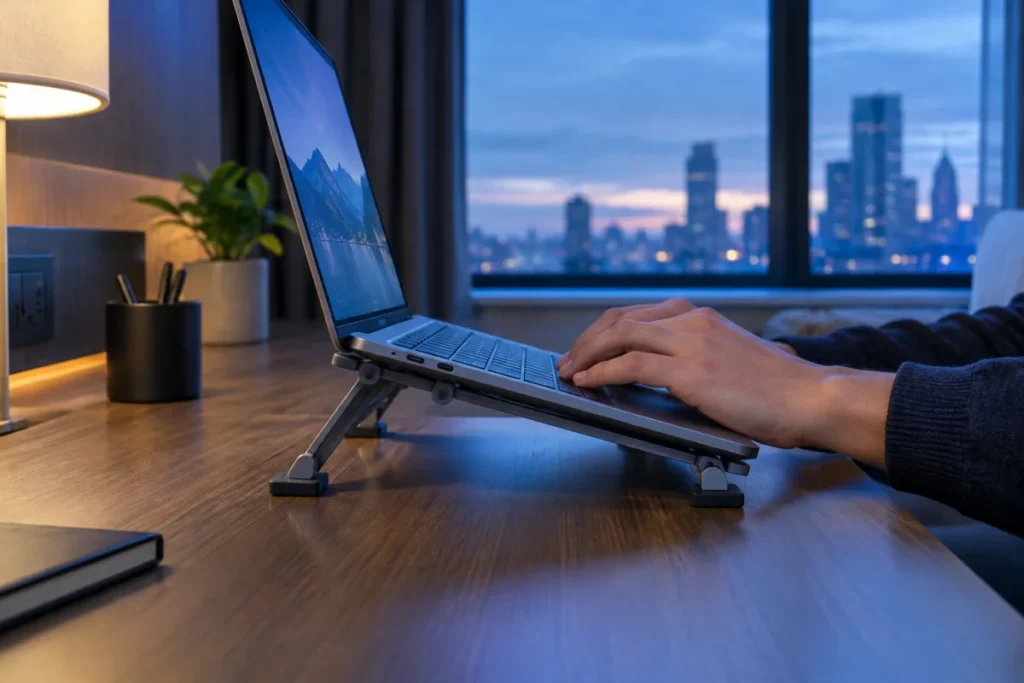
Most desks feel steadier near a supported edge, wall bracket, drawer stack, or leg line. Place the stand over that stronger zone instead of centering it purely for symmetry. If the desk flexes in the middle, shifting the stand a few inches can reduce visible bounce on video calls.
Keep the laptop hinge line roughly over the stand’s center of support. When the screen leans far behind the rear feet, the laptop behaves like a lever. That is when a light tap on the keyboard makes the screen sway. Lowering the screen angle slightly or moving the stand forward can make the same gear feel more controlled.
For narrow hotel desks, avoid stacking stand, laptop, keyboard, mouse, notebook, and coffee in one straight line. Put the keyboard slightly closer, move the mouse to the side with the most elbow room, and keep the laptop stand far enough back that your hands never bump it during normal work.
Step 3: Add friction without damaging the surface
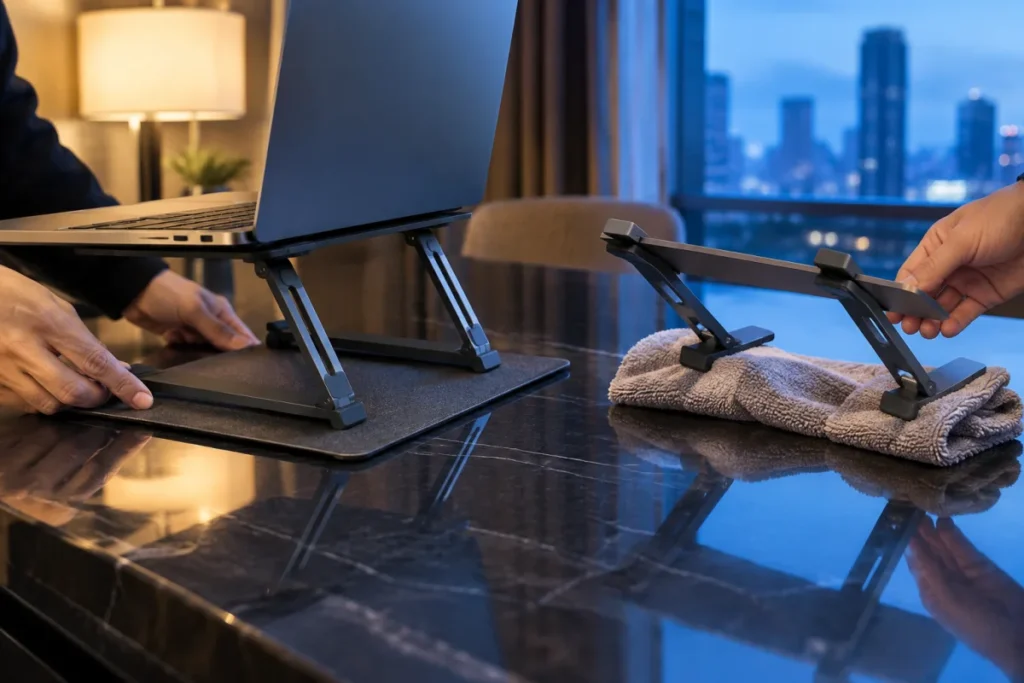
Glossy hotel desks can make rubber feet less effective, especially if the surface has dust, cleaning residue, or a slick finish. Wipe the area with a dry cloth first. If the stand still shifts, add a thin non-marring layer under it.
- A flat mouse pad can work under the stand if it is large enough to support all contact points.
- A thin silicone desk mat adds grip without raising the stand much.
- A neoprene laptop sleeve can work in a pinch, as long as it lies flat and does not bunch under the feet.
- A folded towel usually adds too much softness. It may stop sliding but increase bounce.
The layer should reduce sliding, not create a cushion. Soft padding lets the stand sink and rebound as you type. Thin, grippy, and flat beats thick and plush.
Step 4: Match the stand style to the work session
When you buy a portable laptop stand for hotel desk use, stability matters more than the tallest possible lift. A stand that raises the display beautifully but wobbles on a shallow desk will feel worse than a lower, firmer setup.
Fold-flat stands
Fold-flat stands are appealing because they pack thin and slide easily into a laptop compartment. They work best when the desk is firm, the laptop is not being typed on aggressively, and you only need a modest screen lift. Check that the support rails or feet are wide enough for your laptop size, especially with 15- and 16-inch machines.
High-rise folding stands
High-rise stands can make video calls and long writing blocks more comfortable because the screen sits closer to eye level. The trade-off is leverage. The higher the laptop sits, the more desk stability, base width, and separate input gear matter. A stand such as Twelve South Curve Flex is a useful comparison point for shoppers who want an adjustable laptop stand rather than an ultra-minimal prop, but you still need to verify fit, packed size, and whether it suits your laptop and bag.
Fixed wedge and compact risers
Low wedge-style risers can be steadier because they keep the laptop closer to the desk. They are less helpful for eye-level screen height, but they can be a good compromise for short sessions, tight desks, or situations where you do not want to unpack a full keyboard and mouse.
Step 5: Stop typing forces from reaching the stand
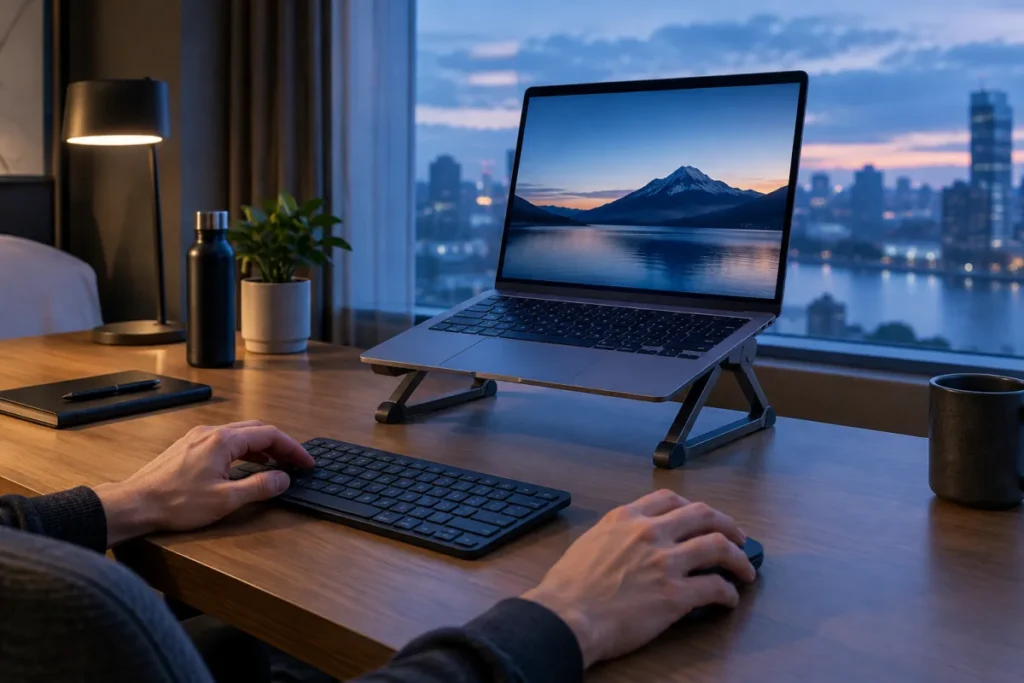
The easiest way to stabilize a raised laptop is to stop using the laptop keyboard as your main input. Every keystroke pushes down and slightly forward. On a high stand, that force travels through the hinge, feet, and desk surface. The result is bounce.
A compact external keyboard and mouse let the laptop become a screen instead of a work surface. Put the keyboard directly on the desk, keep your wrists relaxed, and position the laptop far enough away that your fingers never tap the chassis by accident. Even a lightweight keyboard can make the whole station feel calmer because the stand no longer absorbs your typing rhythm.
If you must use the built-in keyboard, choose a lower stand angle, type with lighter pressure, and avoid fully extending the screen backward. This is not as ergonomic for a full day, but it is often steadier for a short email session.
Step 6: Route cables so they do not pull the laptop
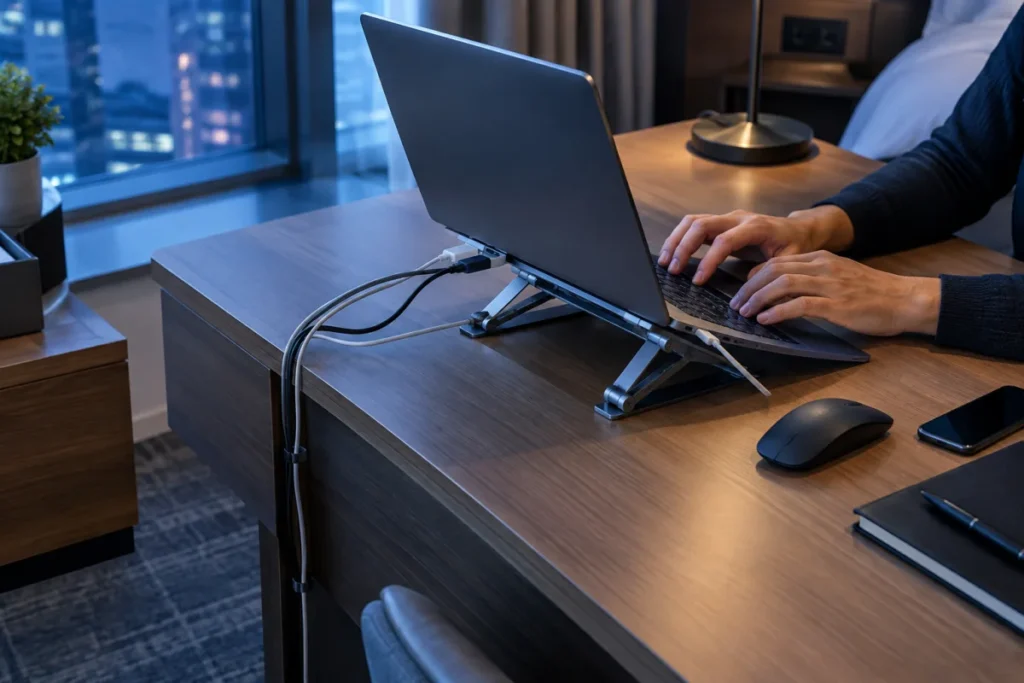
Cables can destabilize a stand in ways that look mysterious until you trace the tension. A charging cable hanging off the back of a shallow desk can tug the laptop every time you move your chair. A monitor cable stretched across the keyboard zone can nudge the stand whenever your hand brushes it.
Run cables toward the hinge side of the laptop, then down along the back or side of the desk with slack. Avoid tight diagonal runs across the work area. If the outlet is far away, move the charger closer with a longer cable rather than pulling the laptop toward the outlet. For USB-C charging, make sure the cable rating matches the power your setup requires; the USB Type-C 60 W cable rating explainer is a useful check when you are sorting travel cables.
Do one small test before calls: move the mouse, reach for your drink, rotate in the chair, and watch the laptop screen. If the screen moves, find the cable or hand path causing it before the meeting starts.
Step 7: Be careful with second screens on small desks
A portable monitor or tablet display can improve workflow, but it also changes the balance of the desk. Two screens mean more cables, more stands, and more surface area competing with the keyboard. On a shallow desk, the second screen may be the thing that makes the laptop stand unstable because everything gets squeezed too close together.
If you need a second display, place the laptop stand first, then add the second screen only after the primary setup passes the wobble test. Keep both displays low enough that their stands are fully supported. If the desk is very narrow, a tablet beside the laptop may take less depth than a full-size portable monitor, depending on your work. The trade-offs are worth reviewing before you pack; start with choosing a second screen for travel workdays if your setup regularly feels crowded.
Common mistakes that make stands feel worse
- Chasing maximum height: Higher is not always better in a temporary workspace. Stability drops when the laptop sits high on a small base.
- Ignoring laptop size: A stand that feels fine with a 13-inch laptop may feel less planted with a larger machine. Check the manufacturer’s fit guidance before buying.
- Typing on the raised laptop all day: This creates bounce and often puts your shoulders and wrists in an awkward position.
- Using soft padding: A towel or blanket can stop sliding but add spring. Use a thin friction layer instead.
- Letting cables hang under tension: Cable pull is a common reason a setup shifts gradually across the desk.
- Skipping the first-minute test: A stand that looks stable can still wobble when you type, adjust the screen, or join a video call.
A 60-second hotel desk stability check
Use this sequence after arrival, before the workday gets expensive.
- Press the desk lightly at the center and corners to find flex or rocking.
- Place the stand over the strongest part of the surface.
- Set the laptop on the stand and check that all feet are fully supported.
- Adjust the screen angle so the hinge is not pulling weight behind the base.
- Add a thin friction layer if the stand slides on the desktop.
- Connect power and accessories with slack in every cable.
- Type for 20 seconds, move the mouse, and watch for screen shake.
- If the setup still bounces, lower the stand or move typing to an external keyboard.
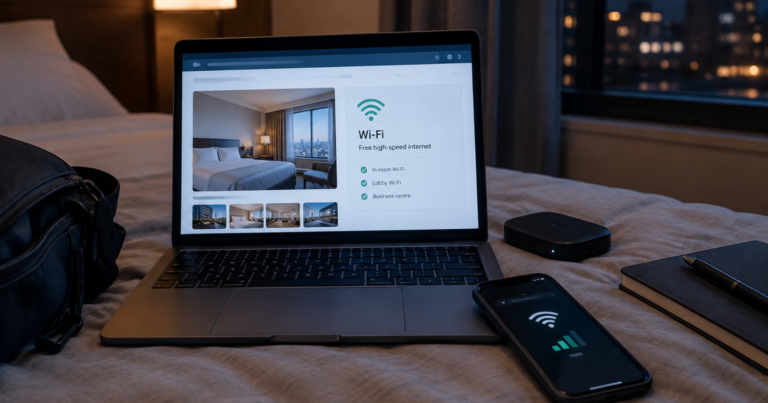
While you are doing this, do the other quick arrival checks that protect the day: outlets, lighting, chair height, background, and connectivity. If calls matter on the trip, it is also worth knowing how to check hotel Wi-Fi before booking a work stay rather than discovering the problem five minutes before a client meeting.
Common questions
What kind of laptop stand is most stable for hotel desks?
A rigid folding stand with a broad base and grippy contact points is usually the safest bet. For a portable laptop stand for hotel desk setups, avoid choosing only by packed thinness; look at base width, hinge stiffness, laptop size support, and whether you will use an external keyboard and mouse.
Can I stabilize a laptop stand without carrying extra gear?
Yes, to a point. Clean the desktop, place the stand over the strongest part of the desk, reduce the laptop screen angle, and route cables with slack. If the surface is slick, a mouse pad or laptop sleeve can act as a thin friction layer.
Is a tall laptop stand worth it for travel?
It can be, especially for video calls and longer work blocks, but it is not automatically better. Tall stands need more desk depth, better cable management, and separate input devices. For short sessions or cramped desks, a lower stand may be steadier.
Should I type on the laptop while it is on a stand?
Occasional typing is fine if the stand is low and stable. For a full work session, a separate keyboard and mouse make the setup steadier and more comfortable because your hands are not shaking the raised laptop.
Main lessons
Stabilizing a travel laptop stand is mostly about controlling leverage, friction, and hand movement. Start with the desk, not the gear. Put the stand where the surface is strongest, keep every foot fully supported, add a thin grip layer when needed, and remove typing force from the laptop whenever possible.
The best hotel setup feels almost boring once it is dialed in: screen steady, cables relaxed, keyboard planted, and no tiny adjustments stealing attention from the work. That is the win. Not a heavier bag, not a complicated desk build, just a setup that behaves when the room gives you less than ideal furniture.